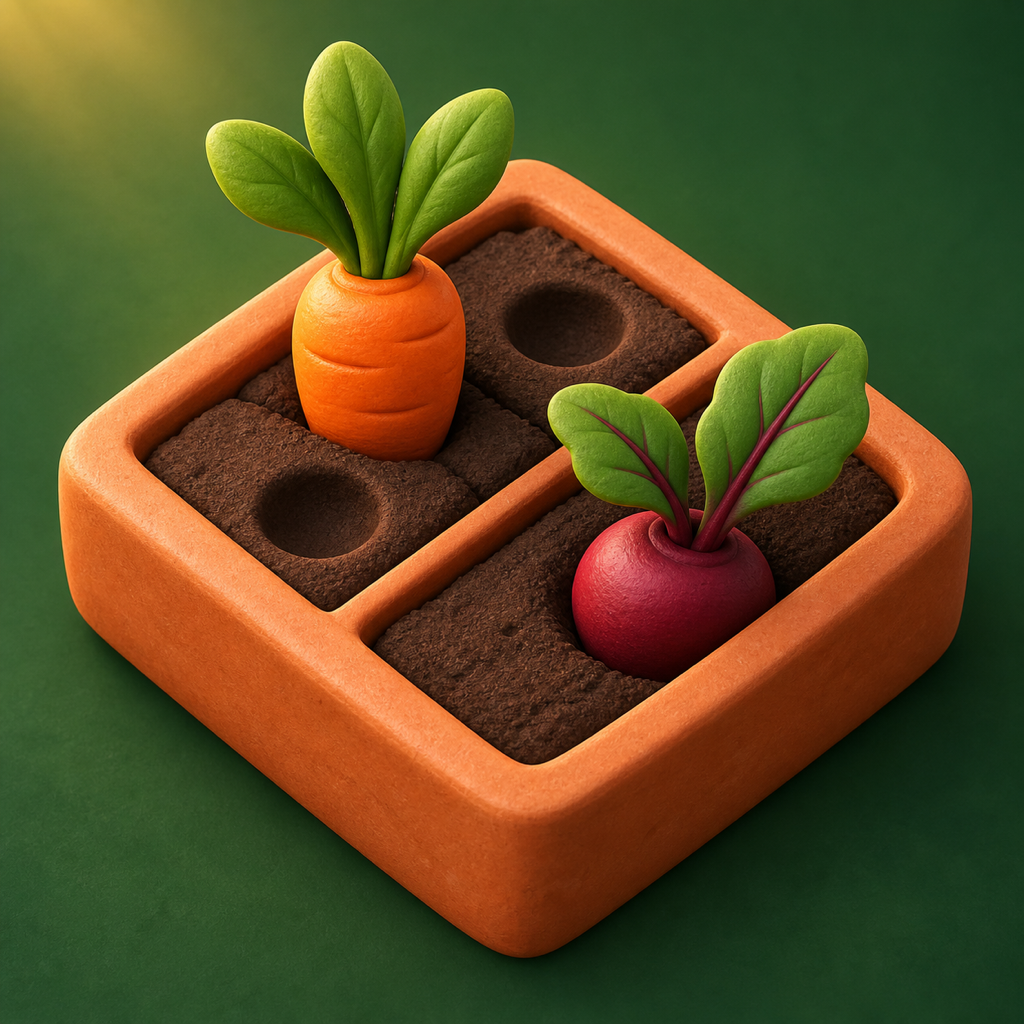
Little Plot, Big Plans
Little Plot support
Help with planting, purchases and your saved gardens.
Little Plot, Big Plans is a quiet planting puzzle for iPhone and iPad. Choose your seeds, make room for their growing patterns, and complete 50 gardens across five chapters.
Here to help
Questions, a stuck planting, or an idea to share? Email us with your app version and build (in Settings), iPhone or iPad model, iOS version, and garden number. Tell us what happened and what you expected. A screenshot can help.
Email supportanagh.techn@gmail.com · Please do not include passwords, payment details, or sensitive personal information.
Planting a garden
How do I plant?
Choose a seed packet, then touch empty brown soil to preview the planting. Release to plant, or slide away to cancel. Each valid planting uses one move. Learn to plant in My Plot or Settings offers an optional practice bed that does not change your campaign progress.
How does each crop grow?
Carrots grow right, cauliflower grows up, and beetroot grows diagonally up-right. The first plant or missing soil stops these lines. Pumpkins grow at the selected square and its four neighboring squares, using only available soil.
Why can a garden finish with empty squares?
You win by reaching every crop goal within the move allowance. You do not need to fill all the soil. Extra crops are allowed, but they use space. Green patches are not planting soil.
Why can’t I add another crop?
Check the remaining moves. Once you have used them all, you cannot plant again even if soil is empty. Choose Undo to restore a move, use a hint, or restart this planting from the garden menu.
Do hints, previews, or mistakes use moves?
No. Changing seeds, previewing, cancelling a preview, asking for a hint, and invalid taps do not spend moves. Undo restores the previous planting and its move. Restart clears the current planting and restores its full move allowance.
Your collection and purchase
What is free, and what does the purchase unlock?
The first five gardens are free. One non-consumable purchase unlocks access to gardens 6–50. The US price is $2.99; the App Store displays your region’s price before purchase. There is no subscription and no advertising. Complete each garden to reach the next. Practice and the journal are available to free players too.
How do I restore my purchase?
Open Settings and choose Restore purchases using the Apple Account that made the purchase. Internet access is needed to contact the App Store. Purchase restoration restores full-game access; it does not restore your garden progress.
My purchase is pending or did not unlock the gardens. What should I do?
If Apple says the purchase is pending, wait for approval or completion. Check your connection and that you are using the Apple Account that made the purchase, then try Restore purchases in Settings. If access is still missing, email support with the message shown in the app. Do not delete the app to troubleshoot a purchase: doing so can remove local garden progress.
Are my gardens saved across devices?
This version saves garden progress, unfinished plantings, preferences, and the journal on this device. It does not provide in-app cloud sync or an online account. Device backups may include app data according to your Apple settings. Deleting the app can remove local progress; restoring the purchase alone will not bring that progress back.
The app cannot read my saved garden. What should I do?
Keep the app installed and choose Try again on the recovery screen. Review recovery options shows what the app can verify before you confirm any recovery. You can cancel without replacing your saved progress. If the save came from a newer app version, update to a compatible version first. Get help opens support; include the message you see, but do not send progress files unless support specifically asks for them.
Why is an earlier journal picture unavailable?
Your completion is still credited. An older version or an unfinished replay may not have retained the finished planting. Grow that garden again to add a picture. The journal keeps the latest successfully saved planting even if you later Undo or start a new attempt.
Does the game work offline?
Puzzle play, practice, and the local journal work offline. Buying or restoring access uses Apple’s services. Opening support, privacy, email, and sharing destinations may use the internet.
Where are sound and accessibility options?
Music, garden sounds, and haptics can be adjusted in Settings. Little Plot uses one consistent light garden appearance. The app follows supported iOS text-size and Reduce Motion settings. The planting guide and practice include text explanations and accessible controls. If a control is difficult to use, tell support which screen and accessibility settings you are using.
For data handling, read the privacy policy. This page describes the 1.0 app experience.